_01JMZ4H43P2JR7Z62M1XDT4TBF.png)
Edit Your Fomo Notification with Custom CSS Overrides 🎨✨
In the world of e-commerce, brand consistency is the ultimate trust signal. According to Shopify’s research on conversion-centered design, using consistent branding across every touchpoint colors, fonts, and styles is essential for building "cognitive fluency." When your site visitors see a notification that looks and feels like a native part of your store, their friction decreases and their trust in your social proof skyrockets. 🚀
Customizing your Fomo notifications isn't just about "prettying things up"; it's a strategic CRO move. By overriding default styles to match your unique brand DNA, you ensure your social proof doesn't look like a generic "plugin," but rather an organic extension of your high-quality customer experience.
💻 Don't Fear the Code!
If you aren't a developer, the term "CSS" might sound intimidating but think of it as just a digital "paintbrush." CSS (Cascading Style Sheets) is simply the set of rules that tells your notification how to look.
Whether you want to add a subtle "glow" to your alerts, change a font to match your logo, or add seasonal flair, our dashboard makes it easy. And remember: You don't have to do this alone. Our brilliant Success Team is ready to help you strategize and design the perfect notification for your brand.
Email us: Reach out to hello@fomo.com and our team will jump in.
🛠️ How to Edit Your CSS Overrides
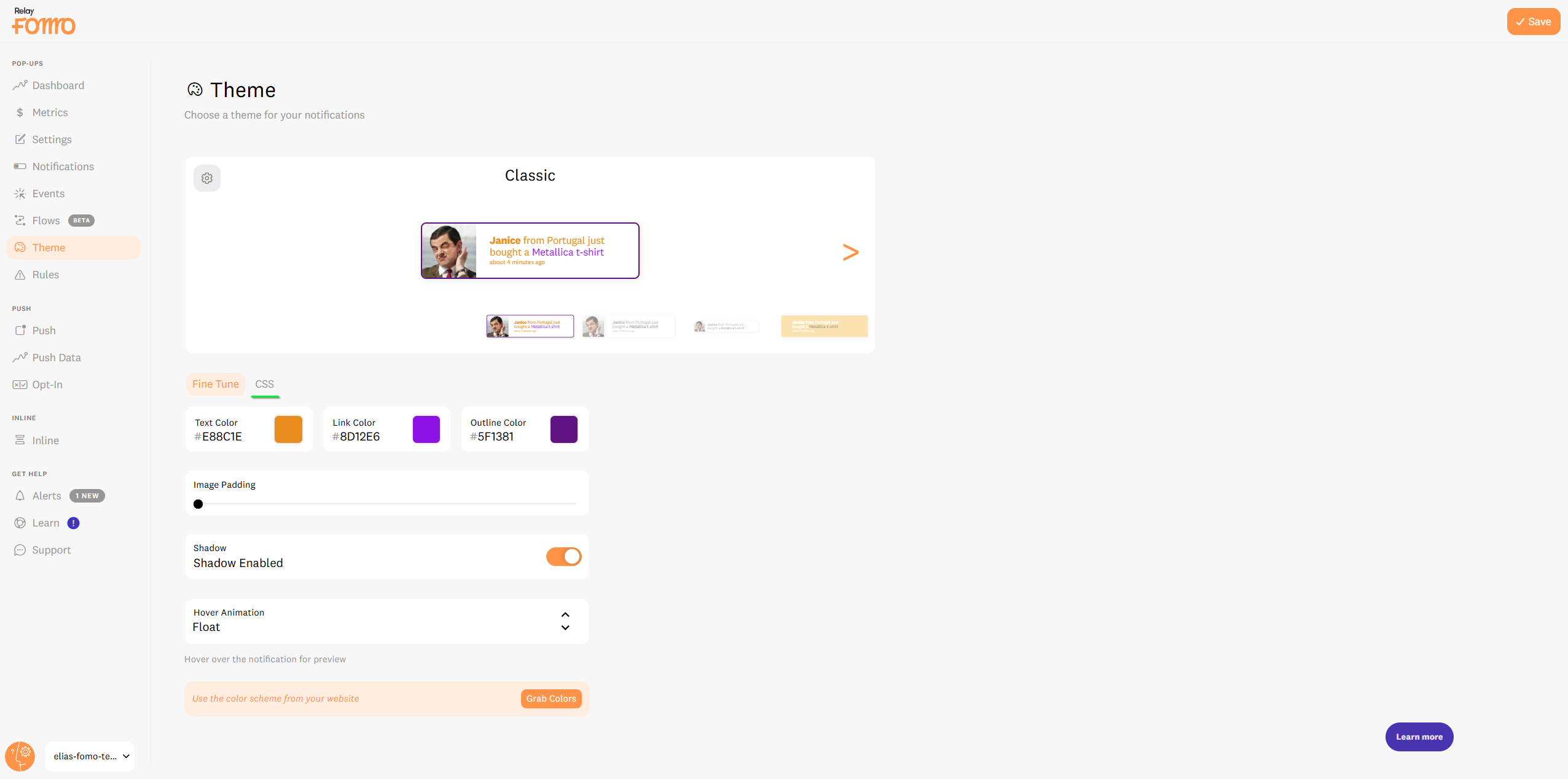
Inside your Fomo dashboard, navigate to the Theme tab and select the CSS sub-tab. You will see an editor with a few lines of code.
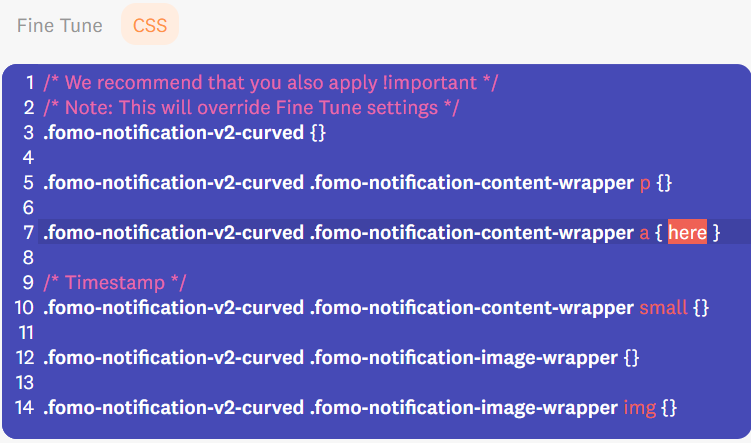
The structure is simple: You place your customizations inside the curly brackets { } at the end of the lines.
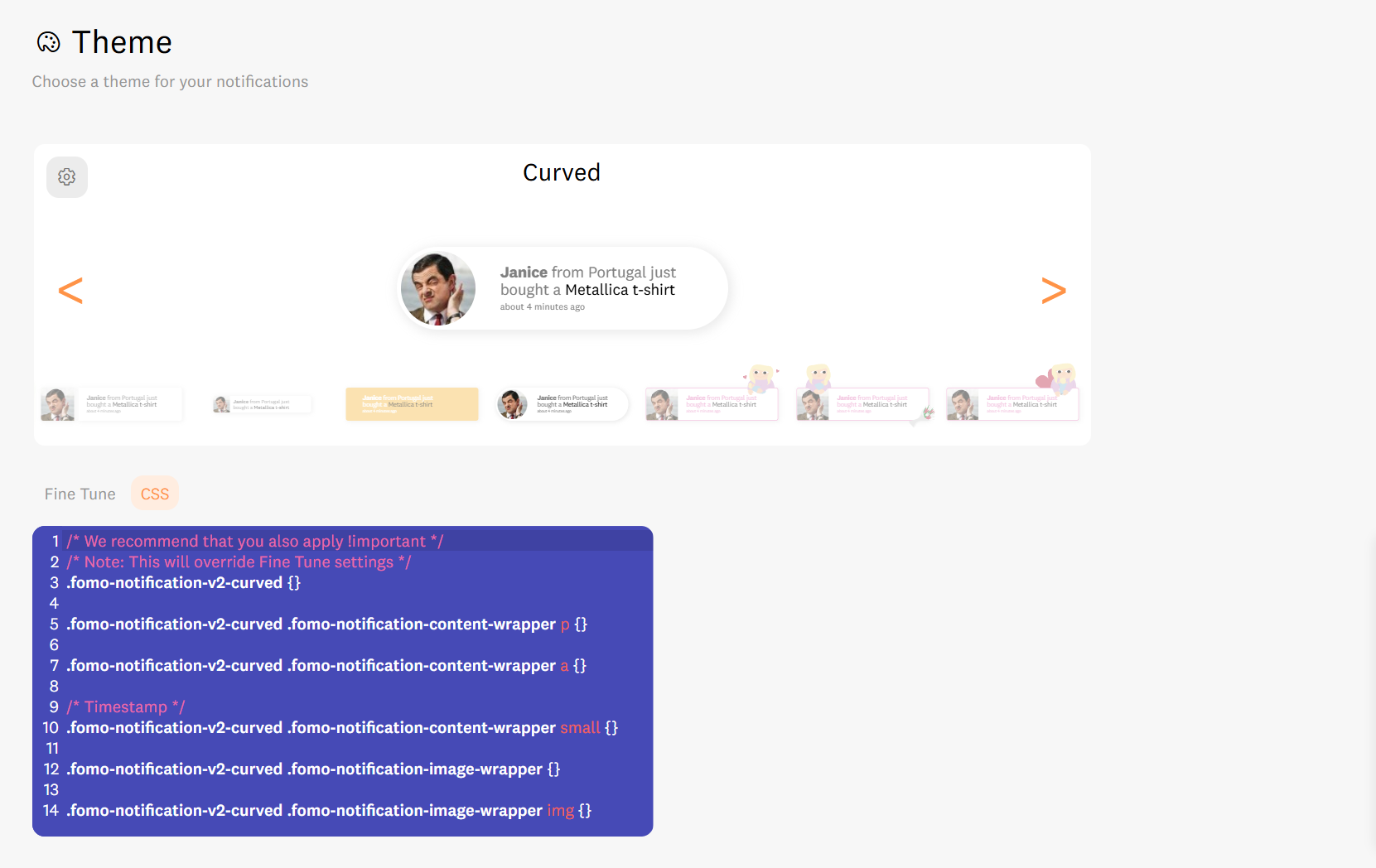
-
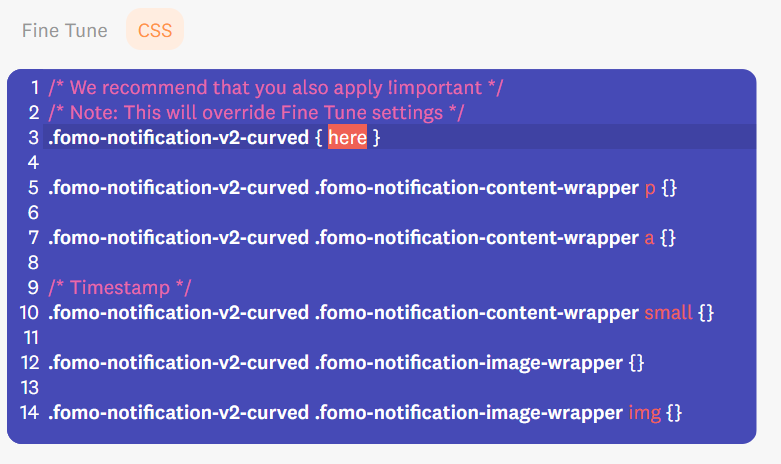
Global Styles (Line 3): Add code here if you want changes to apply to the entire notification (like background color or border-radius).
-
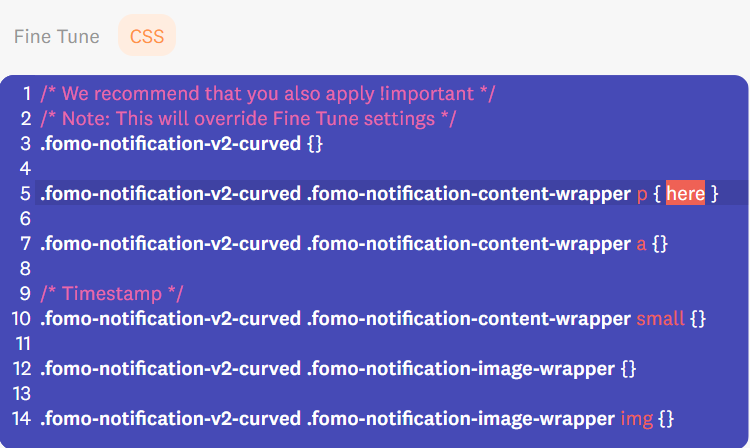
Text Styles (Line 5 -
<p>tag): Add code here to modify only the paragraph text (font size, color, or weight).
-
Link Styles (Line 7 -
<a>tag): Add code here to modify only the clickable links or anchor text.
Golden Rules for CSS Success:
-
The Semicolon: Every CSS change must end with a semicolon
;before the closing bracket}.
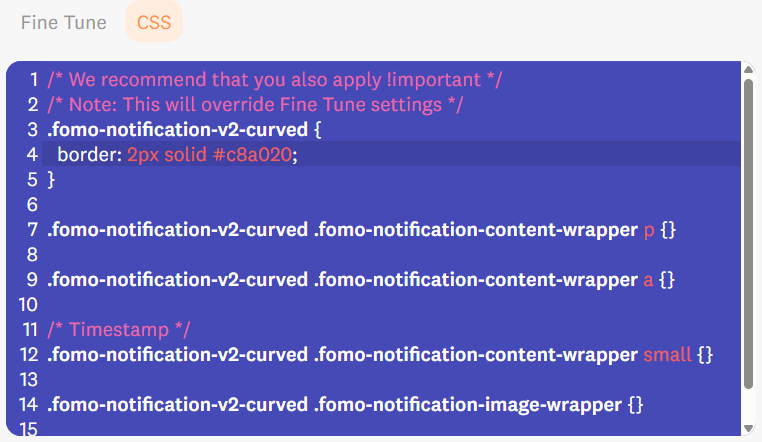
- The Priority Flag: If your changes aren't appearing on your site, it’s likely your website's main theme is fighting for control. Add
!important;to the end of your rule to give Fomo priority.- Example:
color: #ff0000 !important;
- Example:
🧪 Common CSS Recipes to Get You Started
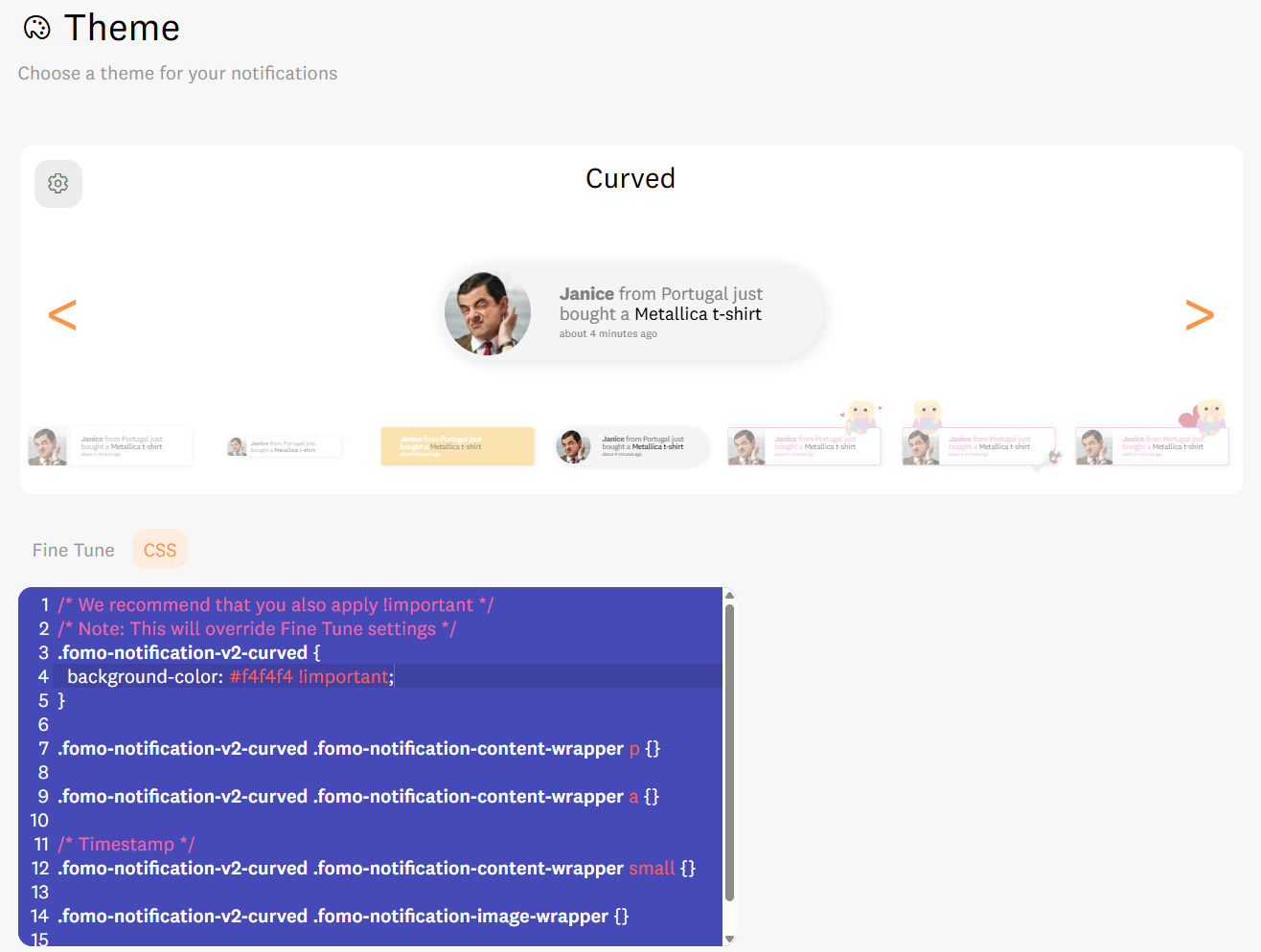
Change Background Color:.fomo-notification-v2-curved { background-color: #f4f4f4 !important; }
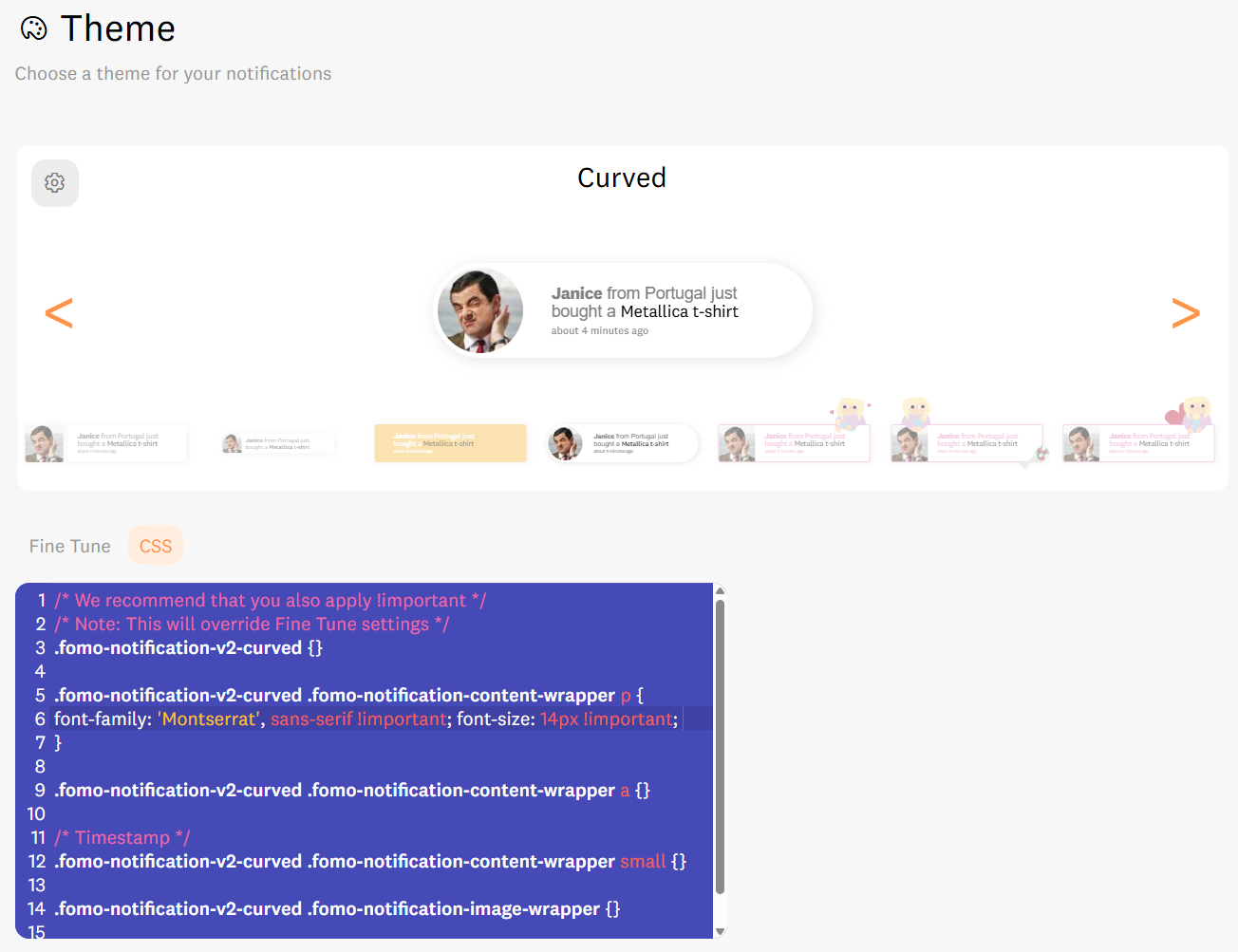
Change Font & Font Size:font-family: 'Montserrat', sans-serif !important; font-size: 14px !important;
Adjust Positioning: If another widget (like a chat box) is hiding Fomo, use bottom: 80px !important; to nudge Fomo up, or right: 40px !important; to move it away from the edge.
Like for example:
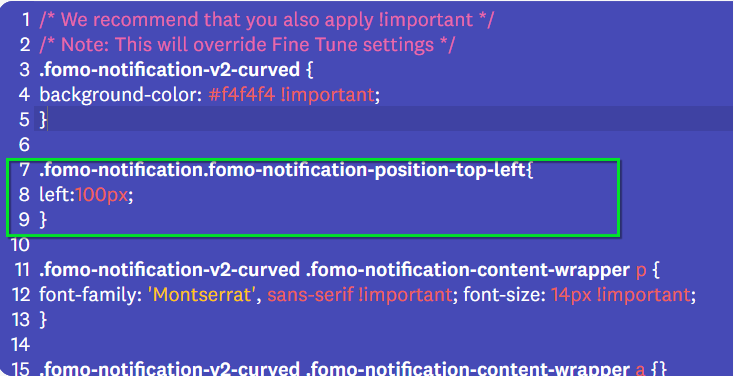
It moves the notification away from the border:

Global Scaling with zoom
If you want to make your entire notification larger or smaller, zoom is our preferred solution. Unlike changing individual font sizes, zoom scales the images, shadows, and text proportionally so they stay sharp and perfectly positioned.
- To enlarge: Use a value over 1 (e.g.,
zoom: 1.4 !important;) - To shrink: Use a value under 1 (e.g.,
zoom: 0.8 !important;) -
A zoom of 1 is the default (100%).

Right-to-Left (RTL) Support
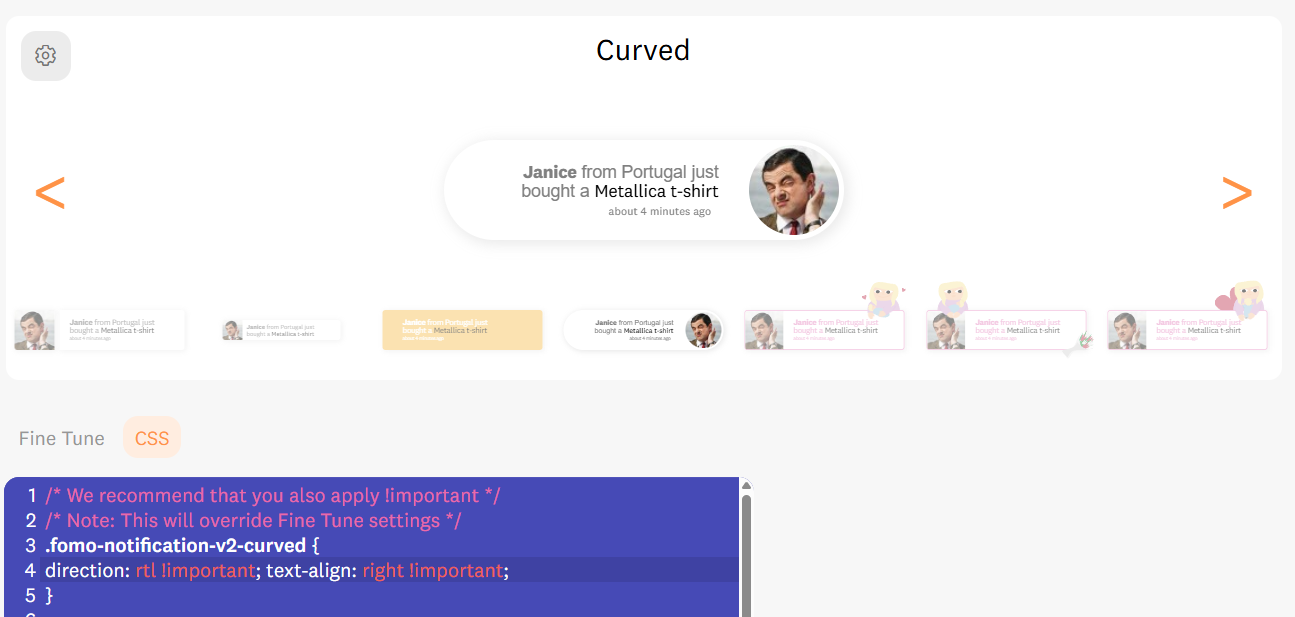
If you have translated your site into a language read right-to-left (like Arabic or Hebrew), add this to the global line: direction: rtl !important; text-align: right !important; This automatically moves the notification image to the right and flips the text direction for a native feel. 🌍
Add a Brand-Defined Outline
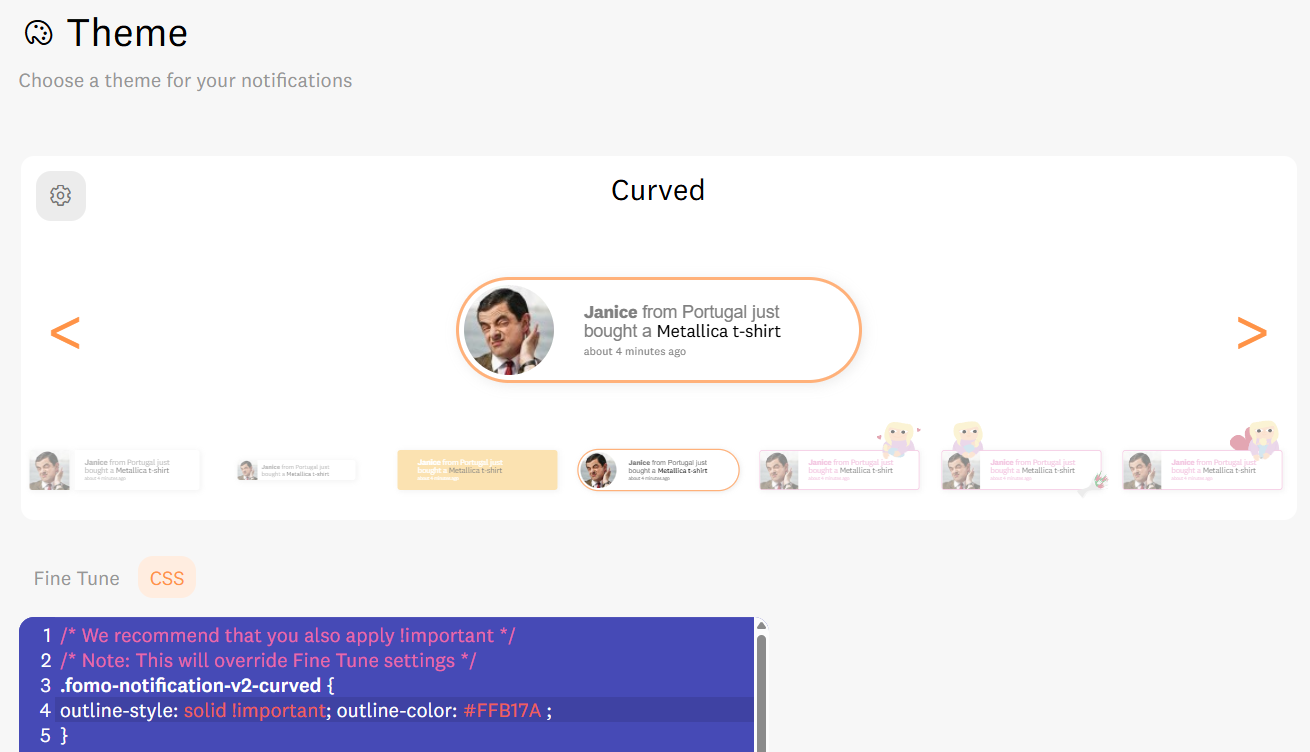
Give your notifications a "pop" by adding a solid border or outline: outline-style: solid !important; outline-color: #YOUR-HEX-CODE !important; Explore more styles like "dotted" or "dashed" via .
🚀 Advanced Pro Tips: Mobile & Precision Positioning
To truly master your site's real estate, you need to treat mobile and desktop users differently. Here is how to use CSS to create a frictionless experience.
Target Mobile Screens Only
Mobile real estate is precious. If your notification feels too large on a phone, use a Media Query to scale it down specifically for smaller screens:
CSS
/* Scale down the notification on mobile devices */
@media only screen and (max-width: 479px) {
  .fomo-notification-v2-classic {
    zoom: 0.8;
  }
}
👉 Is another widget blocking your view? If a third-party app is overlapping your social proof, check out our guide on
What to do if another widget is hiding Fomo
Pro Tip: You can even grab hex colors directly from your website using a color-picker tool to ensure your notifications match your brand perfectly! Whether you want to add a subtle "glow" to your alerts, match your exact brand typography, or adjust the layout for mobile users, our dashboard makes it accessible.

For a complete breakdown of Fomo's standard visual options including built-in hover animations and color-grabbing tools check out Understanding the Theme Tab documentation.
Take it Further:
-
Advanced Designs: Want to add rainbow borders? Check out our guide on Fully Customizing Your Notifications with CSS. 🌈
-
Global Themes: We’ve built pre-made CSS for specific regions and styles. Learn How to Add a Custom Theme (like our Australia, Italy or India-inspired designs).
-
Seasonal Magic: Keep your store fresh by using our Holiday & Monthly Custom Theme Selector to match the vibe of the current season and boost holiday conversions. 🎄🎃
- Build a Signature Look: Do you feel like building a custom theme specifically for your brand? Shoot a message to the Success Team and they will help you out! We love helping our users stand out. 🤝✨
🚀 We’re Here to Help You Scale
Every business has a unique "sweet spot" between branding and social proof. If you aren't sure which design tweak or CSS rule will convert best for your specific audience, we've got your back.
Email us: Reach out to hello@fomo.com and our team will jump in.
Work with an Expert: We’ll hop on a call, share screens, and help you build a social proof strategy that fits your brand perfectly. Pick the day and time here.🥳