_01JMZ4H43P2JR7Z62M1XDT4TBF.png)
How to connect Fomo to Framer ⏩
Framer is a powerful design and hosting platform for modern websites. While Framer doesn't have a traditional "plugin store," connecting Fomo to your Framer site is incredibly simple using our universal JavaScript embed snippet.
Follow this guide to get your social proof live on Framer in less than 5 minutes.
⚠️ Prerequisite: Framer requires a paid site plan (Mini, Basic, or Pro) to use the custom code feature. If you are currently on Framer's free tier, the custom code sections will be locked.
Step 1: Copy your Fomo Embed Code
-
Log into your Fomo Dashboard.
-
Navigate to Settings > Embed.
-
Copy the unique block of asynchronous JavaScript code provided in the box.
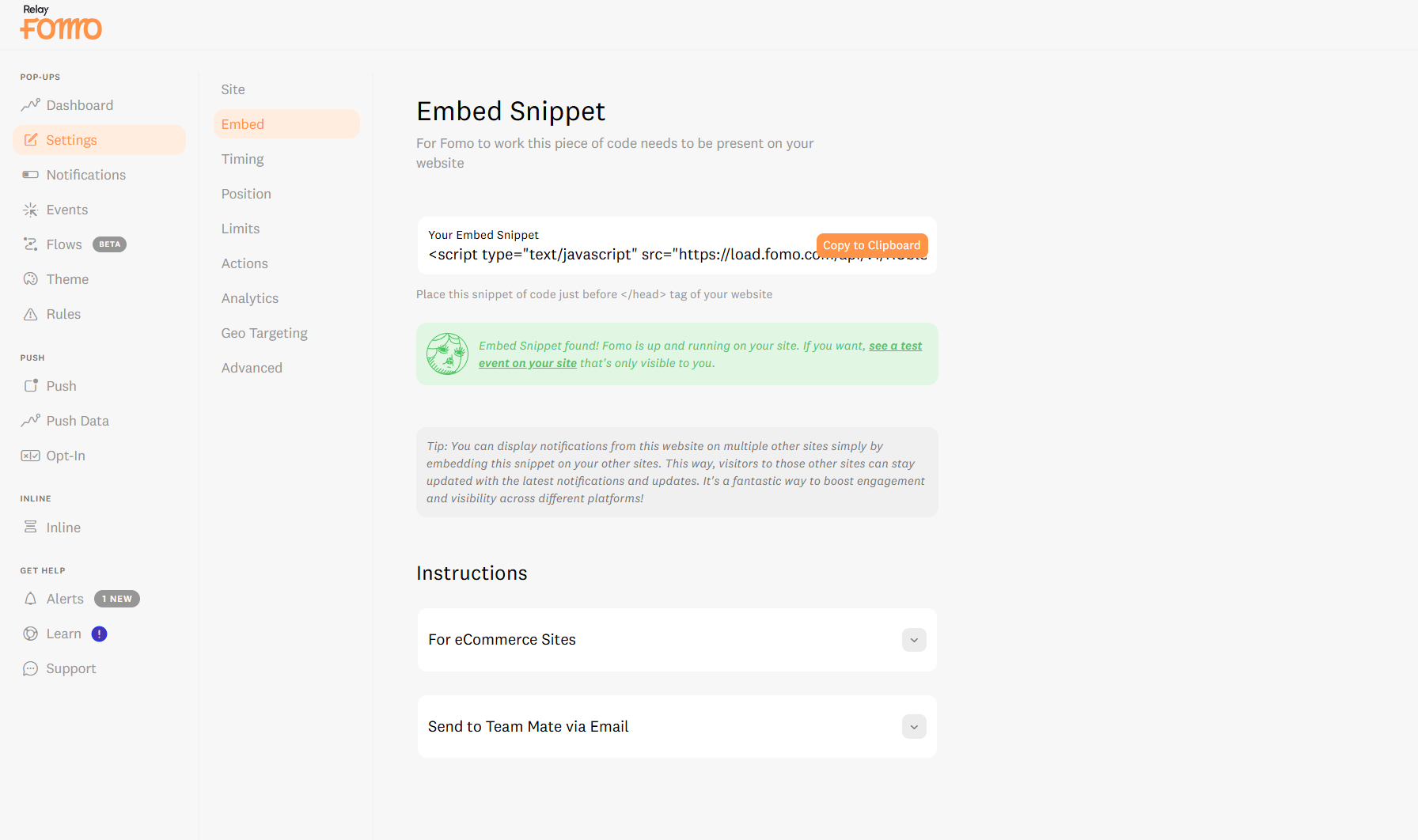
Step 2: Paste the Code into Framer
-
Log into your Framer account and open your website project.
-
In the top-left toolbar, click on the Settings icon (the gear symbol).
-
In the left-hand sidebar under Site Settings, click on Custom Code.
-
Locate the section box labeled End of
<head>.
-
Paste your Fomo embed snippet directly into the code editor.
- Click the green Save button in the top right corner of the settings pane.
Step 3: Publish Your Changes
To make the code live on your domain:
-
Close the settings panel to return to your Framer canvas.
-
Click the Publish button in the top right corner of your dashboard.
- Click Update to push the changes live.
⚙️ Best Practices: "Run on Every Visit" vs. "Once"
Once Fomo is installed, you can control how often notifications appear to a user from your Fomo Dashboard under Settings > Timing. Here is how to configure it based on your Framer site structure:
1. If your Framer site is a Single Landing Page
If visitors land on one page, read your content, and decide whether to sign up or buy, you should allow Fomo to run on every visit. Because they aren't clicking around to other pages, you want to make sure they see your social proof every time they arrive.
-
Pro-Tip: Go to Settings > Timing and set an Initial Delay of 5–10 seconds. This gives your visitor a chance to read your main headline before the notifications begin to show up.
2. If your Framer site has Multi-Page Navigation
If you have a multi-page site (e.g., Home, About, Features, Pricing), running notifications aggressively on every single page click can cause "Notification Fatigue."
- Pro-Tip: Turn Looping OFF in your settings and cap your notifications to 3 or 4 per page. This provides a quick nudge of trust when they transition to a new page, and then gracefully fades away so they can focus on your content.
🚀 We’re Here to Help You Scale
If you've published your site and don't see notifications appearing after 10–15 seconds, open an incognito browser window to bypass your browser's local cache.
Need extra help getting connected?
Email us: Reach out to hello@fomo.com and our team will jump in.
Work with an Expert: We’ll hop on a call, share screens, and help you build a social proof strategy that fits your brand perfectly. Pick the day and time here.🥳